
Guide
How a real FSBuy order goes from search to shipped, step by step
FSBuy's own homepage carries a silent 2-minute, 9-second walkthrough of one live order. We watched the whole thing, captured a frame at each stage, and matched it against FSBuy's written help centre. Here is what we found at each step.
Watch the source first
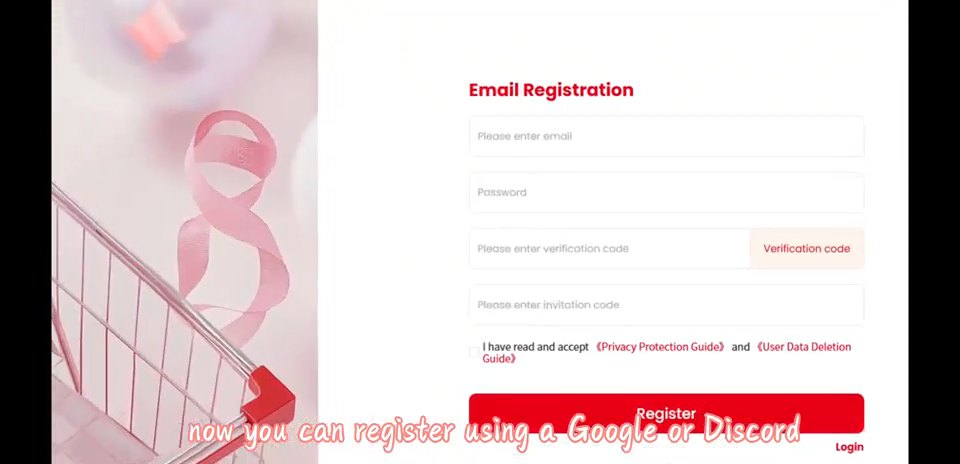
Find fsbuy.com and register
Signing up only needs an email address and a one-time code sent to it; the video shows a password field too, though the live form we tested on 2026-10-22 only showed email plus code. An optional invitation-code field sits below that, and a checkbox for the Privacy Protection Guide and User Data Deletion Guide is required before the button activates. The video's own caption notes you can also register with a Google or Discord account instead of email, which is faster if you already use either.
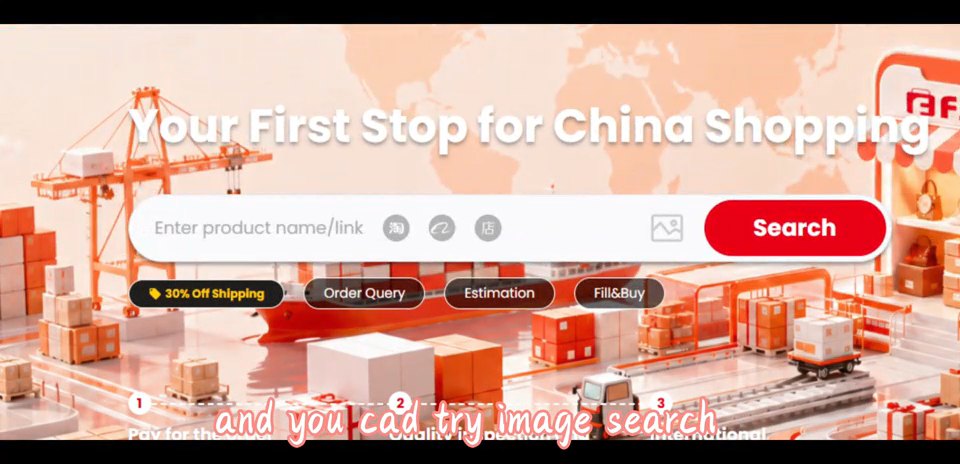
Find the item: paste a link, search, or search by photo
FSBuy's own search bar carries the line “Your First Stop for China Shopping” and sits above three small platform icons for Taobao, Xianyu and 1688-style listings, next to an image-search icon. The caption on this part of the video is blunt about it: paste a product link copied from the original marketplace, or type a keyword, or upload a photo and let image search find a match. Four shortcut chips sit under the search bar: a shipping discount banner, Order Query, Estimation, and Fill&Buy, which is FSBuy's name for the manual DIY order path.
Confirm size, colour and quantity on the listing
Once you're on a product page, FSBuy breaks the price into two lines before you commit to anything: what the seller charges plus FSBuy's domestic shipping fee to the warehouse, then a second line for the international shipping estimate to your address. A running shipping discount banner sits between the two. Below that are the normal retail choices, colour swatches and a size grid, plus a quantity stepper that on some listings enforces a minimum purchase quantity, a 1688-style wholesale rule carried straight through from the original marketplace.
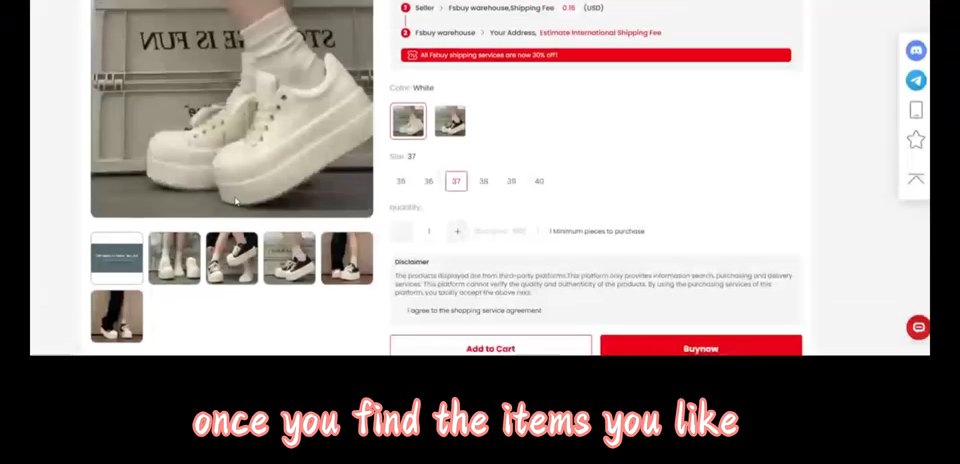
Accept the disclaimer and pay
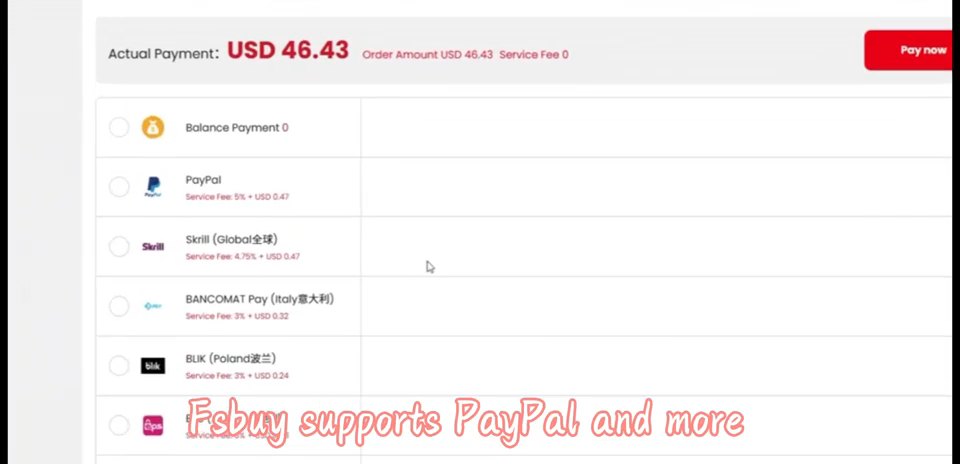
Before the cart button activates, FSBuy shows a standing disclaimer: the products displayed come from third-party platforms, FSBuy only provides information search, purchasing and delivery services, and FSBuy cannot verify the quality or authenticity of the products. You tick a box agreeing to the shopping service agreement, then add to cart or buy outright. At checkout, the payment screen lists a “Service Fee” line next to the order amount; in the example order shown in the video that line reads zero, though FSBuy does not publish a general service-fee percentage, so that cannot be assumed to apply to every order or category. Payment methods and their surcharges are covered in full on the rates and fees page, with a calculator.
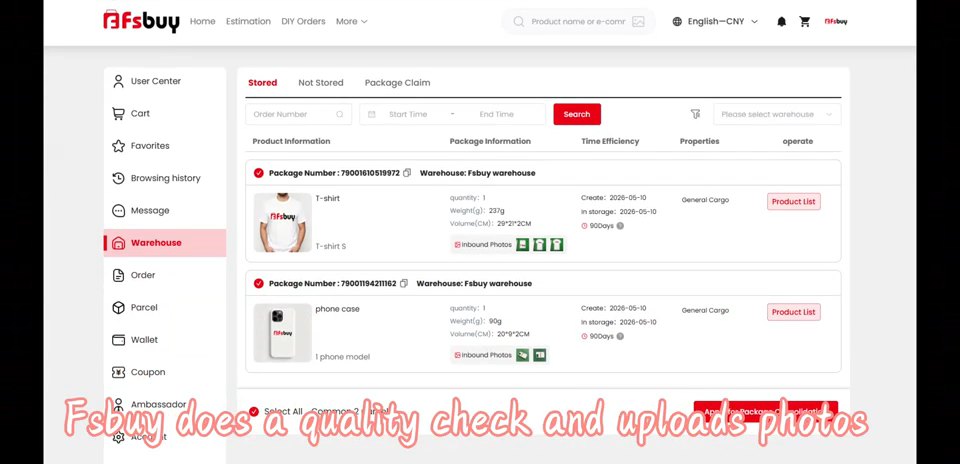
Warehouse check-in and quality check
This is the step most FSBuy guides skip, because nobody usually has a screenshot of it. FSBuy's video shows the actual Warehouse tab: a Stored / Not Stored / Package Claim toggle at the top, then a table listing each parcel by package number, product photo, quantity, weight in grams, volume in centimetres, the date it was created and the date it went into storage, a days-remaining badge, and an Inbound Photos button per item. The on-screen caption at this point says plainly that FSBuy does a quality check and uploads photos once a parcel is logged. What FSBuy's QC can and cannot confirm about a product is covered on the quality checks page.
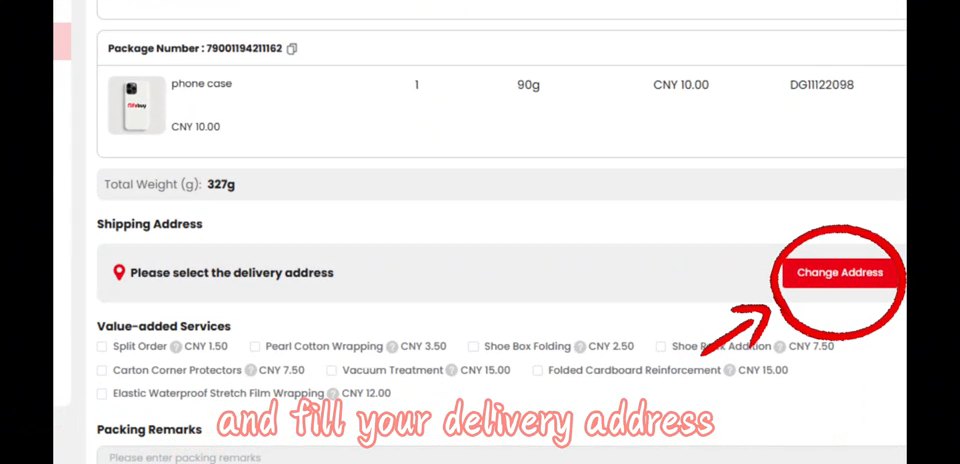
Choose packing options and confirm the shipping address
Once a parcel (or several parcels you're consolidating together) is ready to leave the warehouse, FSBuy shows a submission screen with the package's total weight, a shipping-address field with a Change Address control, and a list of optional value-added packing services, each with its own yuan price: split order, pearl cotton wrapping, shoe-box folding, a shoe-rack addition, carton corner protectors, vacuum treatment, folded cardboard reinforcement, and elastic waterproof stretch-film wrapping. A packing-remarks text box sits below for anything not covered by the preset list. None of this is guesswork from us; it's what the checkout screen itself showed in the video.
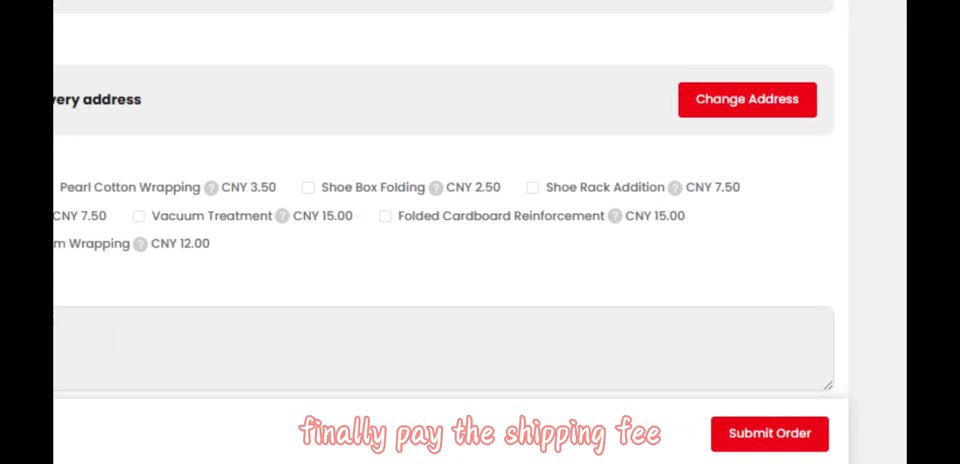
Pay the international shipping fee
FSBuy's own marketing line for this stage is “pack first, pay later”: you see the real packed weight and volume before committing to an international shipping cost, rather than paying an estimate upfront. The submission screen's final button reads Submit Order once the shipping fee is confirmed and paid. What the shipping fee itself depends on, route, weight tier, and customs thresholds by destination, is on the shipping and customs page.
Receive the parcel, and what happens if something's wrong
The video closes on a simple confirmation card: FSBuy's logo over the phrase “That's it, your parcel is on its way.” What isn't shown on screen, because it happens after delivery, is FSBuy's written return and exchange policy: a 5-day return-and-exchange guarantee, meaning you have 7 days from receiving the goods, or 5 days (120 hours) from when FSBuy's domestic warehouse first logged them, whichever window your seller's platform rules allow. A list of categories that are harder or impossible to return, custom or print-on-demand items, apparel with tags removed, secondhand goods, intimate apparel, food, and more, sits in the same policy. The full list and the caveats are on the shopping cautions page.
What FSBuy's own homepage looks like
FSBuy is one of the few agents in this space that uses a looping video, rather than a static photo, as its homepage hero background. Here is that clip, unedited, muted the same way it plays on fsbuy.com itself.
Ready to start? Open FSBuy's own registration page directly; this site never handles your account, payment, or order.
Register on fsbuy.com